How does it already work

Tenderium user guide

Start with registration, choose Ireland for the most complete current workflow, select a tender, click Ask Tenderium, review loaded tender documents, and ask TenderiumChat questions in that tender context.

Current Tenderium workflow

What users can do today

  • Create an account and complete basic onboarding.
  • Open the personal account with tenders, chat, documents, saved tenders, and profile areas.
  • Use filters and choose Ireland as the recommended current demo country.
  • Open Irish tender cards, save tenders, or start working with a tender by clicking Ask Tenderium.
  • Load available tender documents into the workspace in the Ireland flow.
  • Ask TenderiumChat questions in the context of the selected tender.
  • Upload user response documents and compare them with tender requirements as the document-review workflow develops.

Step-by-step

The 10-step current service flow

1

Step 1. Register and complete basic onboarding

Click the sign-up button and create an account with email and password. Tenderium then asks for basic company information such as company name, registration number where available, industry, markets, and procurement experience. This onboarding creates the first company context for tender filtering, recommendations, and future document-readiness checks.
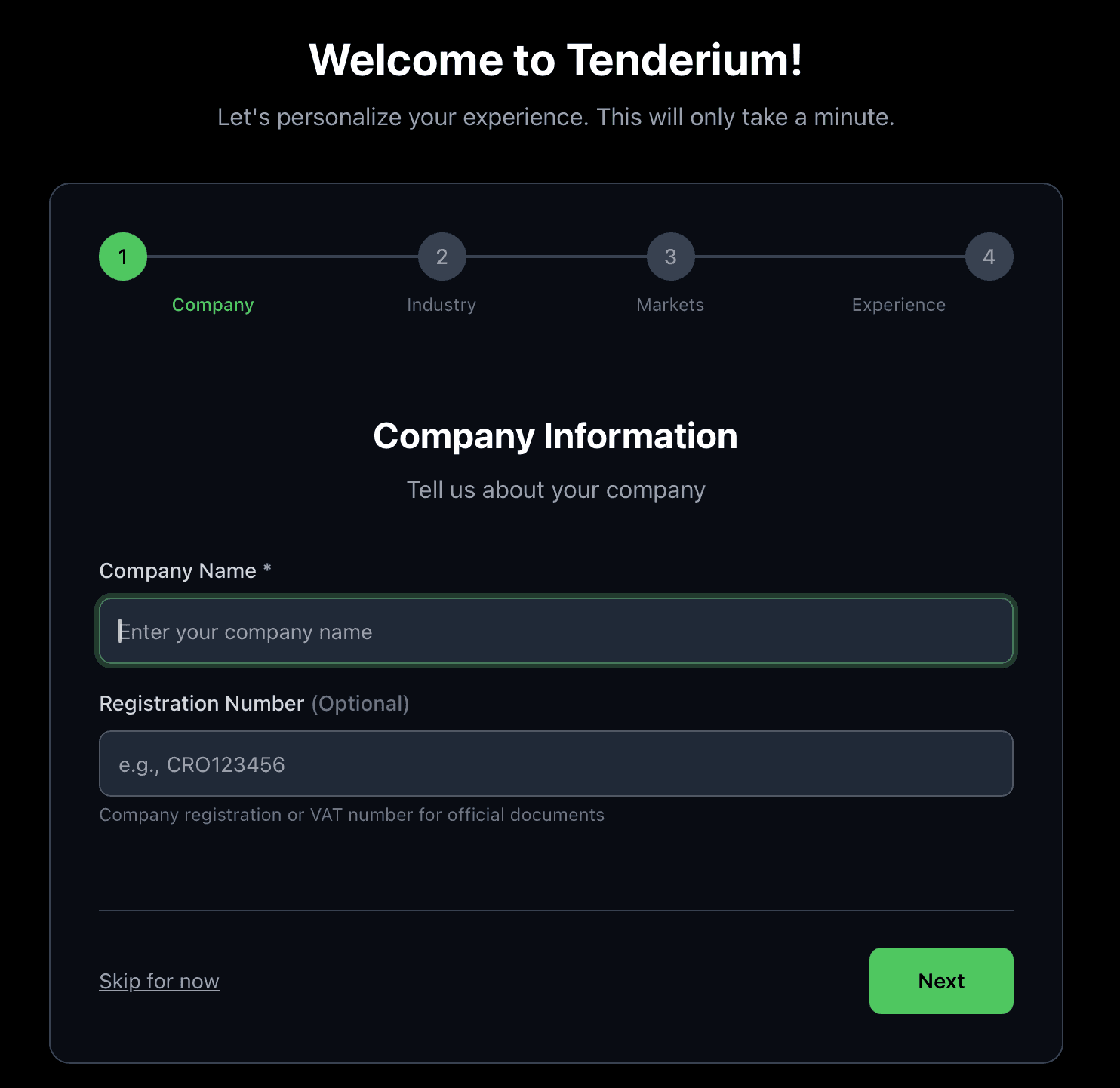
Tenderium registration and onboarding screen for company profile setup
Screenshot 1 - registration and onboarding screen.
2

Step 2. Enter the personal account

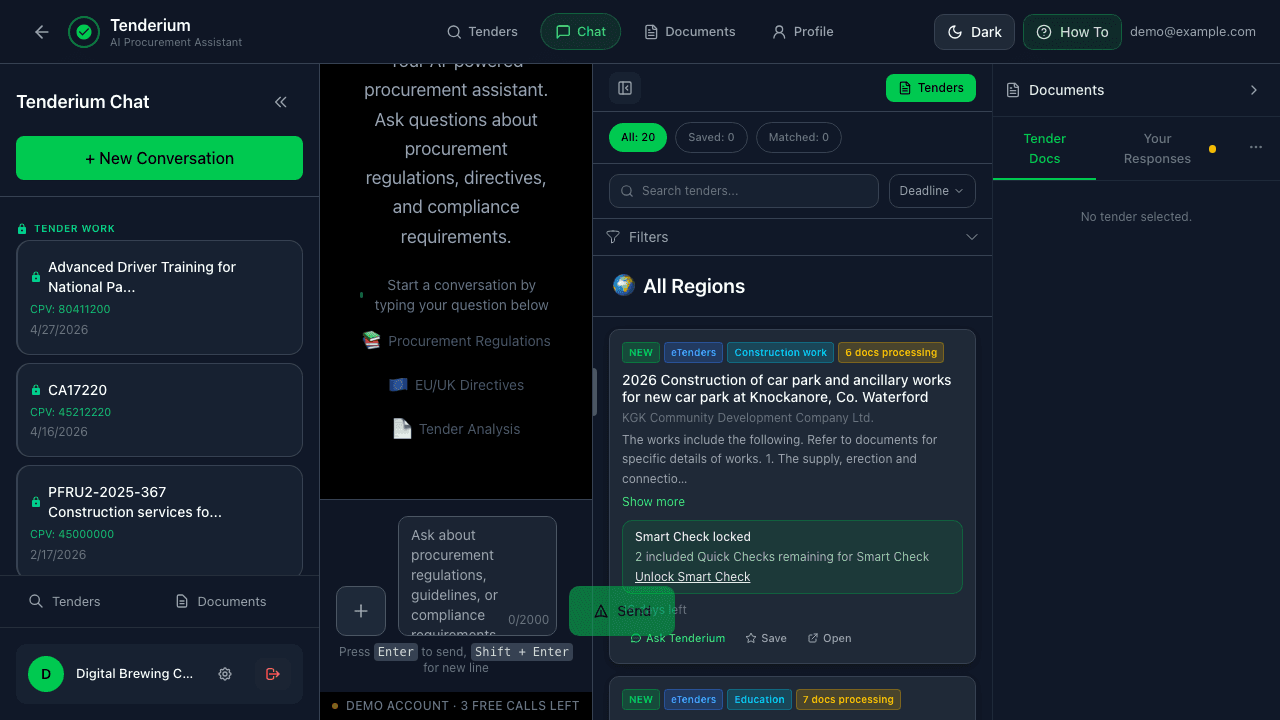
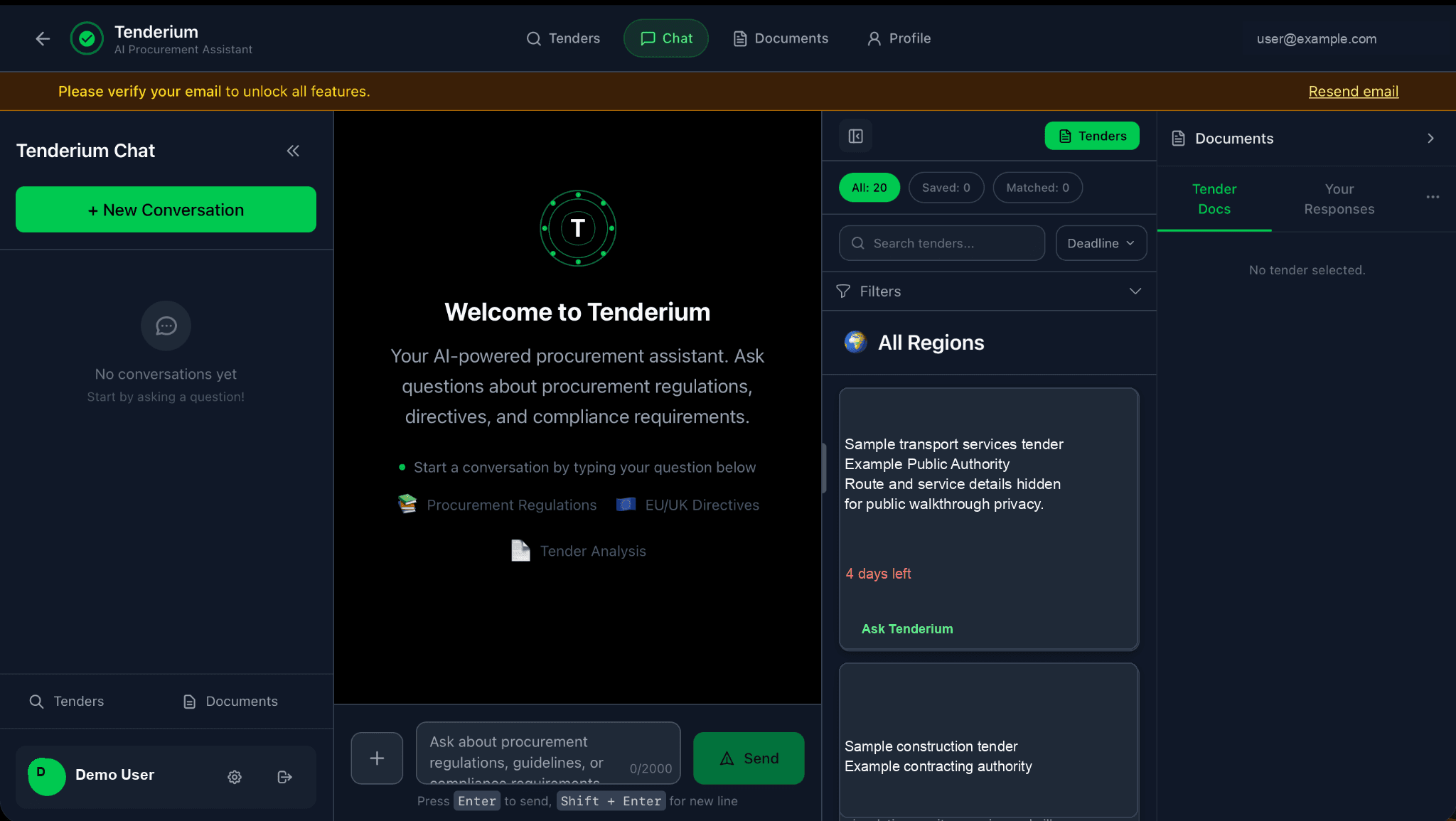
After registration, the user enters the personal account. This is the central workspace where the user can access TenderiumChat, tenders, documents, saved tenders, and the company profile. The personal account is designed as the long-term company cabinet, while each selected tender opens as a separate tender-specific workspace.

Tenderium personal account showing chat, tender list, and document area
Screenshot 2 - personal account with chat, tender list, and document area.
3

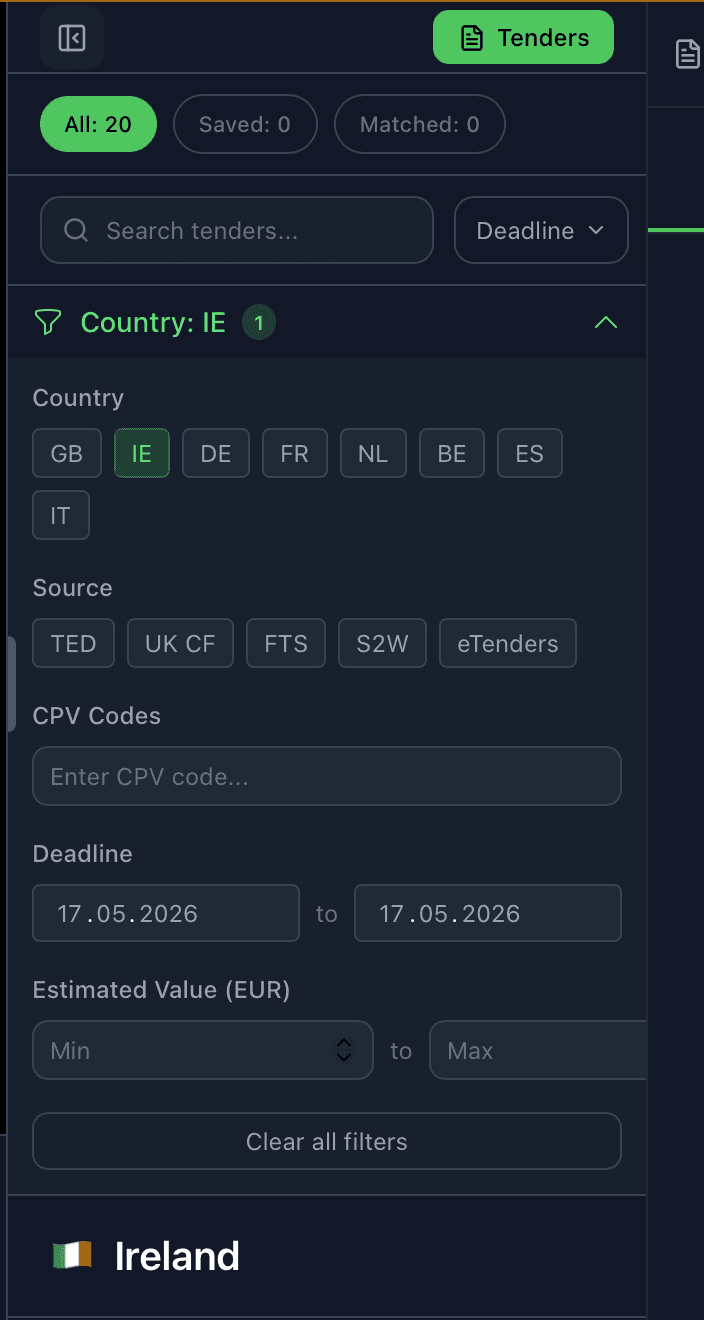
Step 3. Choose Ireland in the filters

For the current product demonstration, we recommend choosing Ireland in the filters. Ireland is the strongest current end-to-end flow because Tenderium can combine tender discovery with loading available documents from the Irish eTenders source. This allows TenderiumChat to work inside the context of a real selected tender.

Tenderium filter panel with Ireland and tender source options
Screenshot 3 - filter panel with country and tender-source options.
4

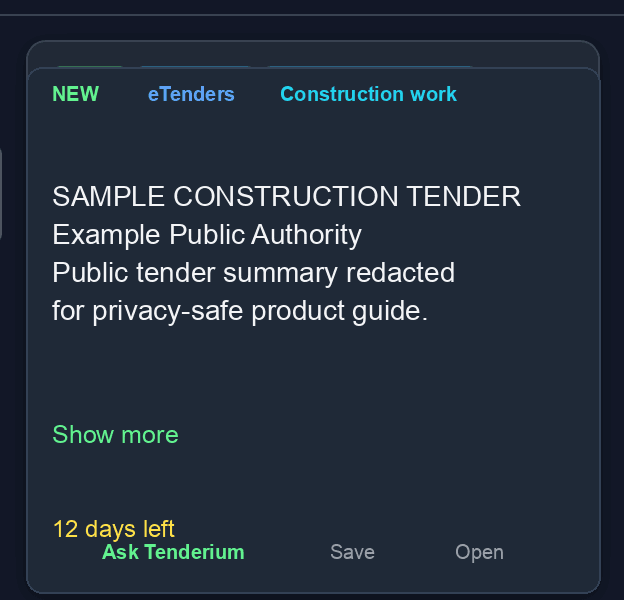
Step 4. Review tender cards and choose an action

After Ireland is selected, the user can see available tender cards. Each tender card gives three practical actions: Ask Tenderium, Save, and Open. Open sends the user to the official procurement source. Save keeps the tender for later. Ask Tenderium starts a tender-specific workspace inside Tenderium.

Tender card showing Ask Tenderium, Save, and Open actions
Screenshot 4 - tender card with Ask Tenderium, Save, and Open actions.
5

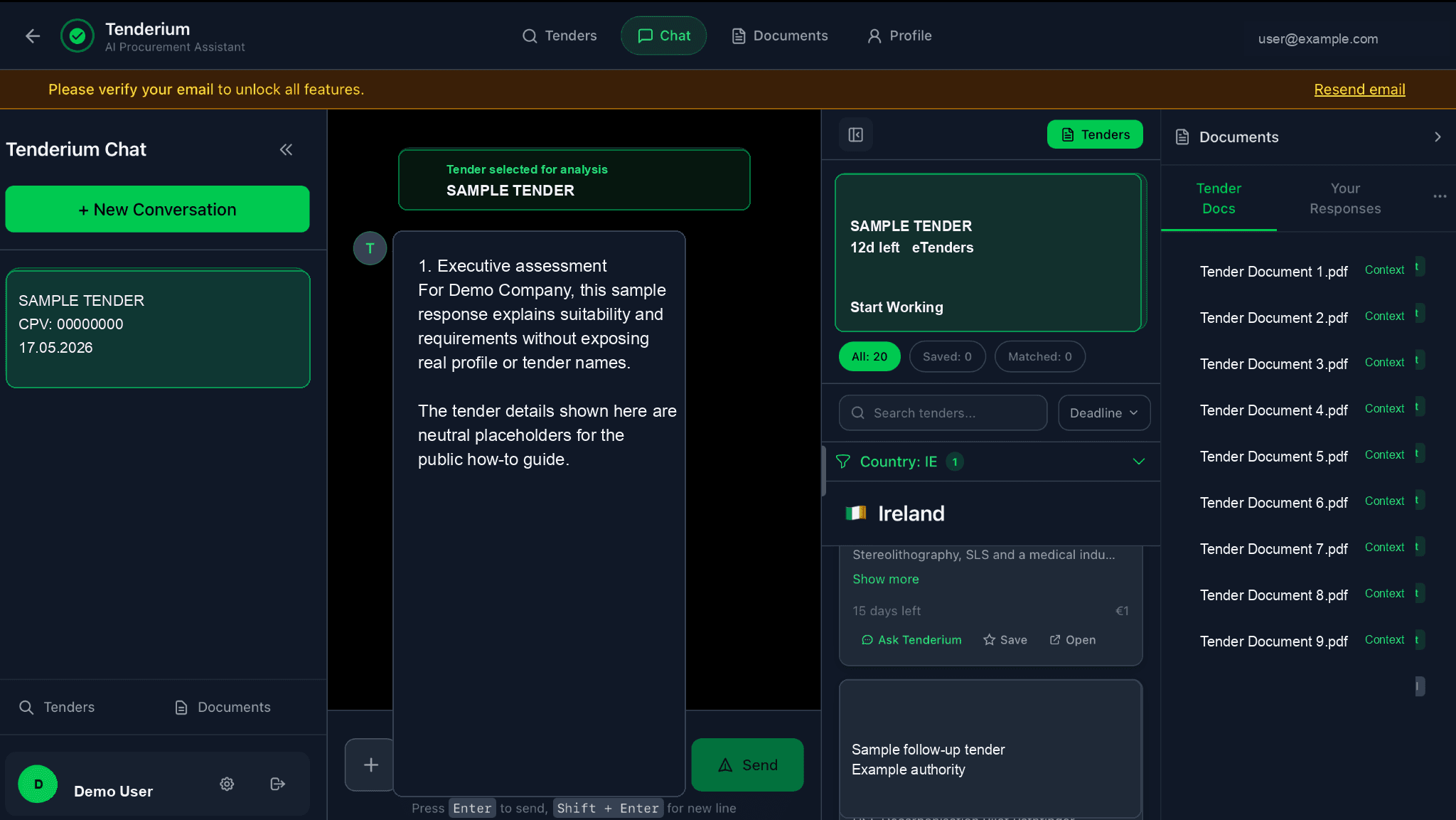
Step 5. Click Ask Tenderium to start working with a tender

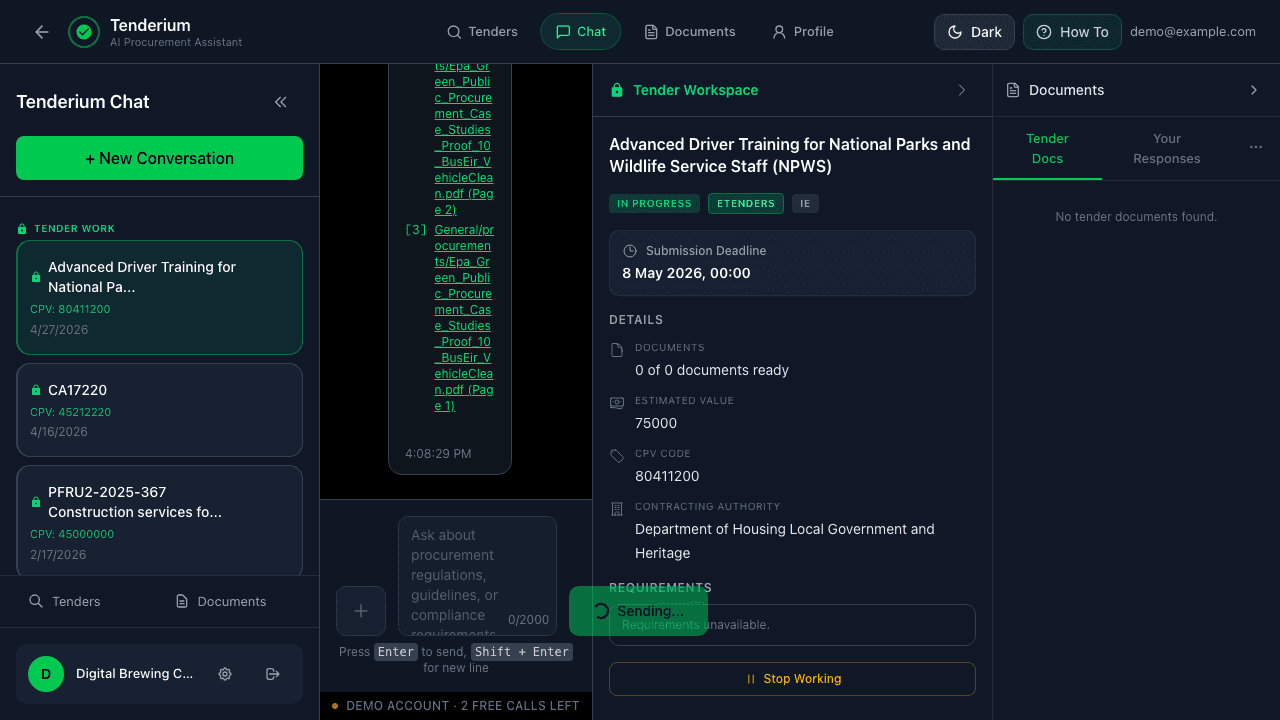
When the user clicks Ask Tenderium, the selected tender becomes an active workspace. In the Ireland flow, Tenderium loads the available tender documents into the document panel. TenderiumChat then answers questions based on the tender context, rather than acting like a general AI chat.

TenderiumChat answering within an Irish tender context
Screenshot 5 - TenderiumChat working with an Irish tender context.
6

Step 6. Use tender documents and user response documents

The workspace separates tender-side documents from the user’s own documents. Tender docs contain files imported from the official tender source. Your responses are documents uploaded or prepared by the user, such as draft forms, certificates, experience evidence, declarations, insurance documents, method statements, or bid responses.

Tender workspace with tender context, document panel, and user response area
Screenshot 6 - tender context, document panel, and user response area.
7

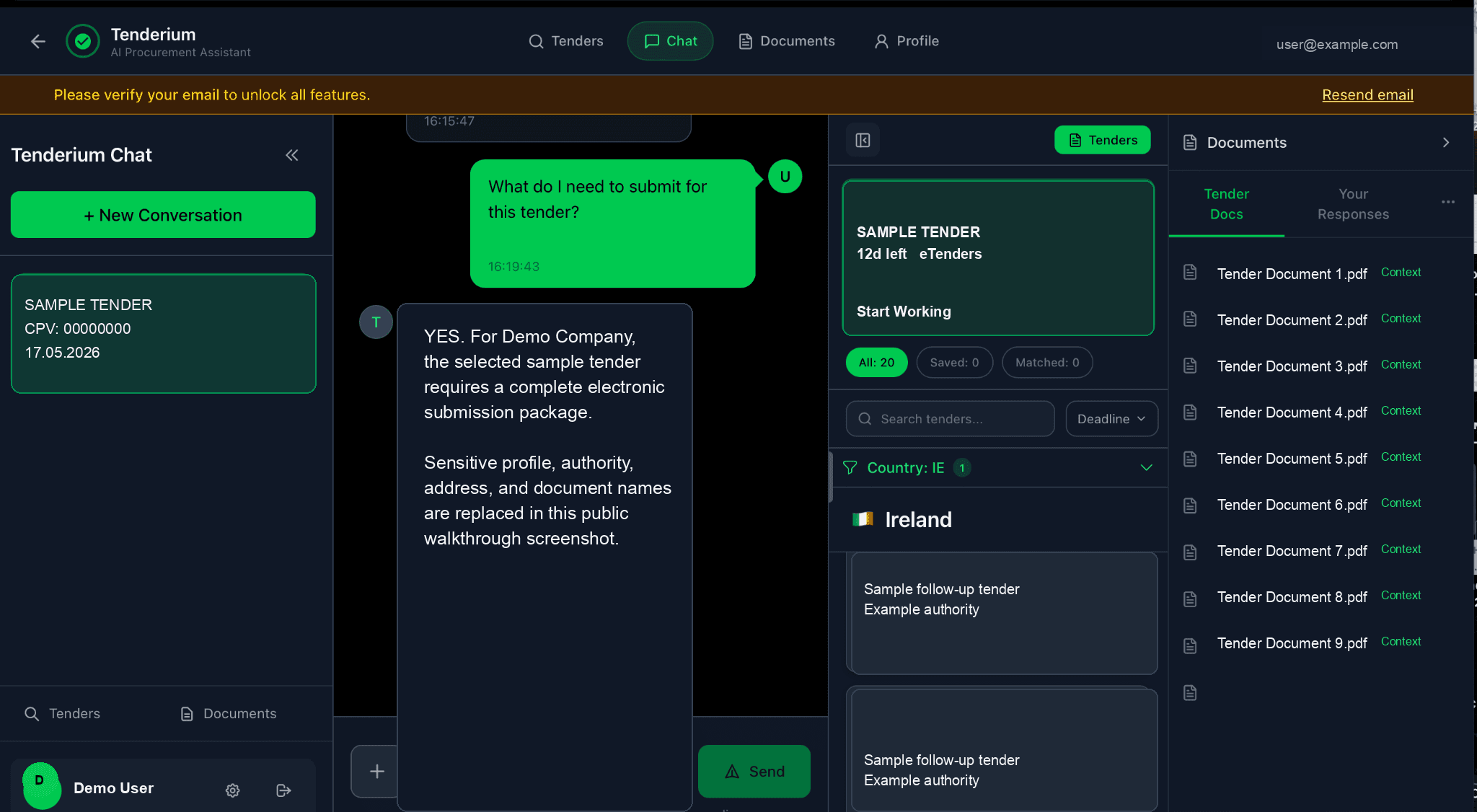
Step 7. Ask for a structured preparation map

TenderiumChat can provide a structured overview of what is needed for a specific tender. In the product walkthrough, Tenderium identifies the tender, recognises the user profile, highlights that the tender may not fit the company background, extracts submission requirements, identifies a deadline discrepancy, and lists documents likely to be required for participation.

8

Step 8. Start a focused preparation workflow

The user can also click Start working. This moves the interaction from general review into an active preparation workflow. The purpose is to help the user move from reading tender documents to organising the steps and materials needed for a tender package.

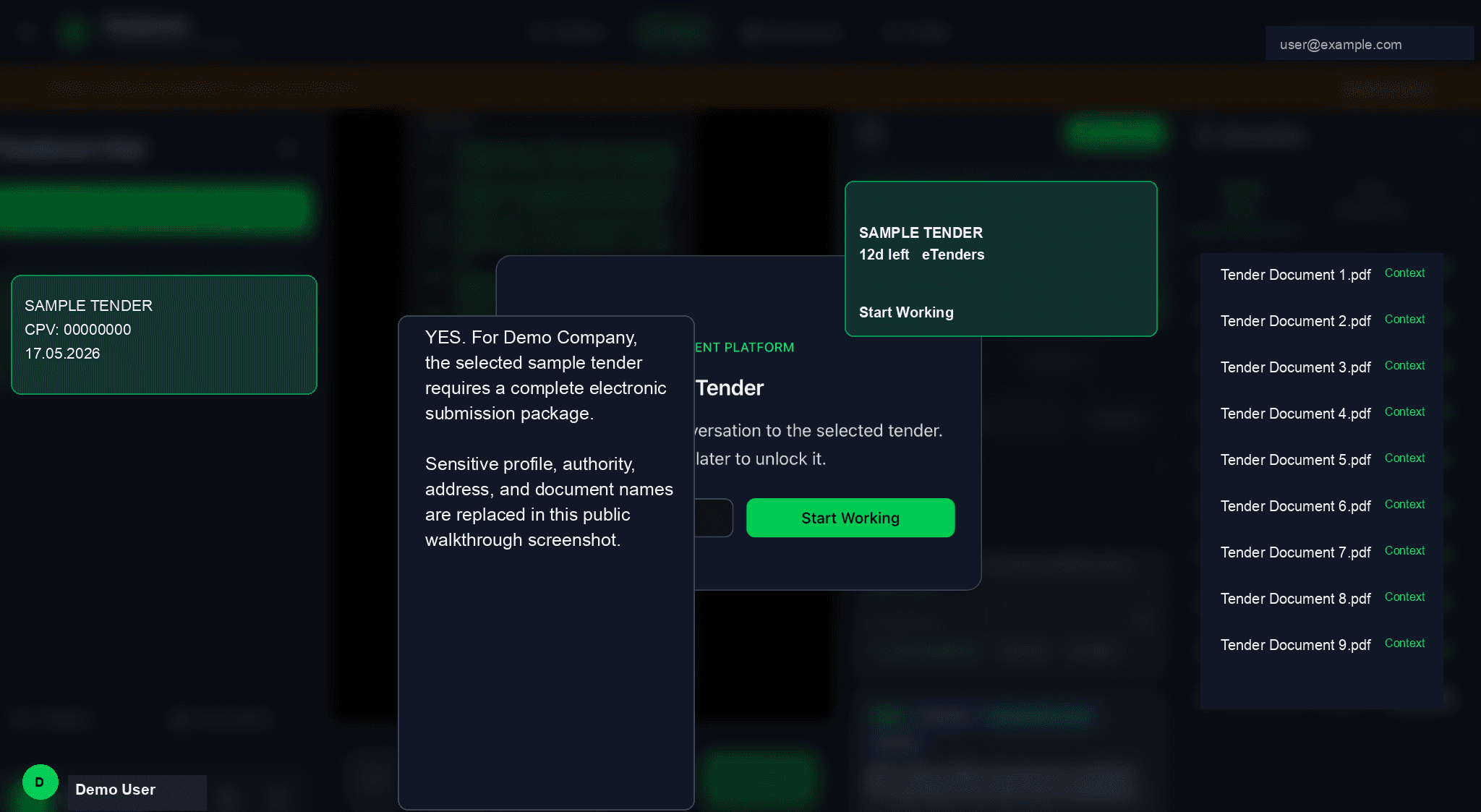
Start working modal for a selected tender
Screenshot 7 - Start working modal for the selected tender.
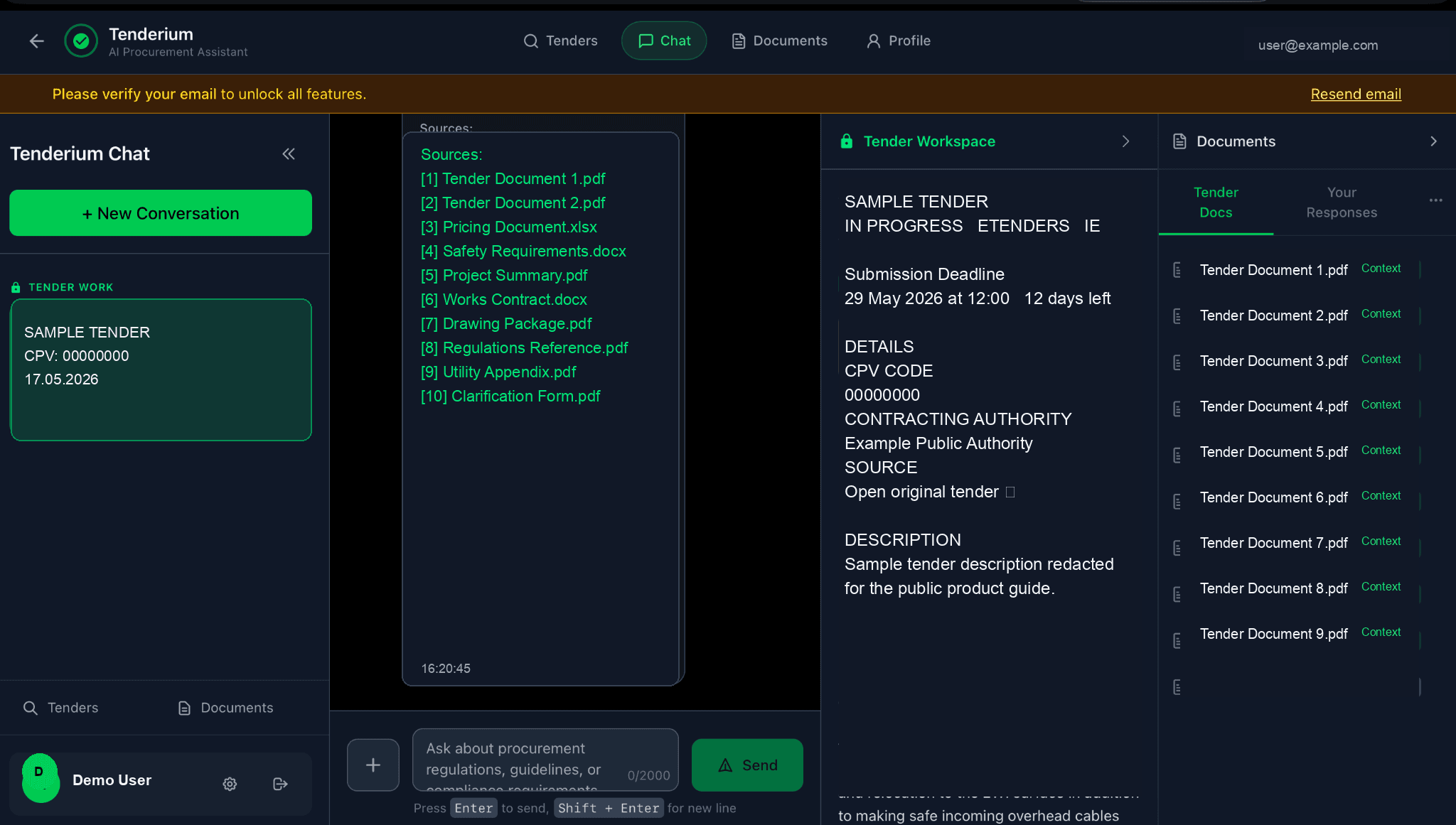
Active tender workspace with extracted context and document list
Screenshot 8 - active tender workspace with extracted context and document list.
9

Step 9. Navigate between main account areas

The top navigation allows the user to move between Tenders, Chat, Documents, and Profile. This keeps the service simple: search and monitor tenders, work with TenderiumChat, manage documents, and maintain the company profile from one account.

Main account navigation for Tenders, Chat, Documents, and Profile
Screenshot 9 - main navigation: Tenders, Chat, Documents, Profile.
10

Step 10. Return to saved tenders and activity overview

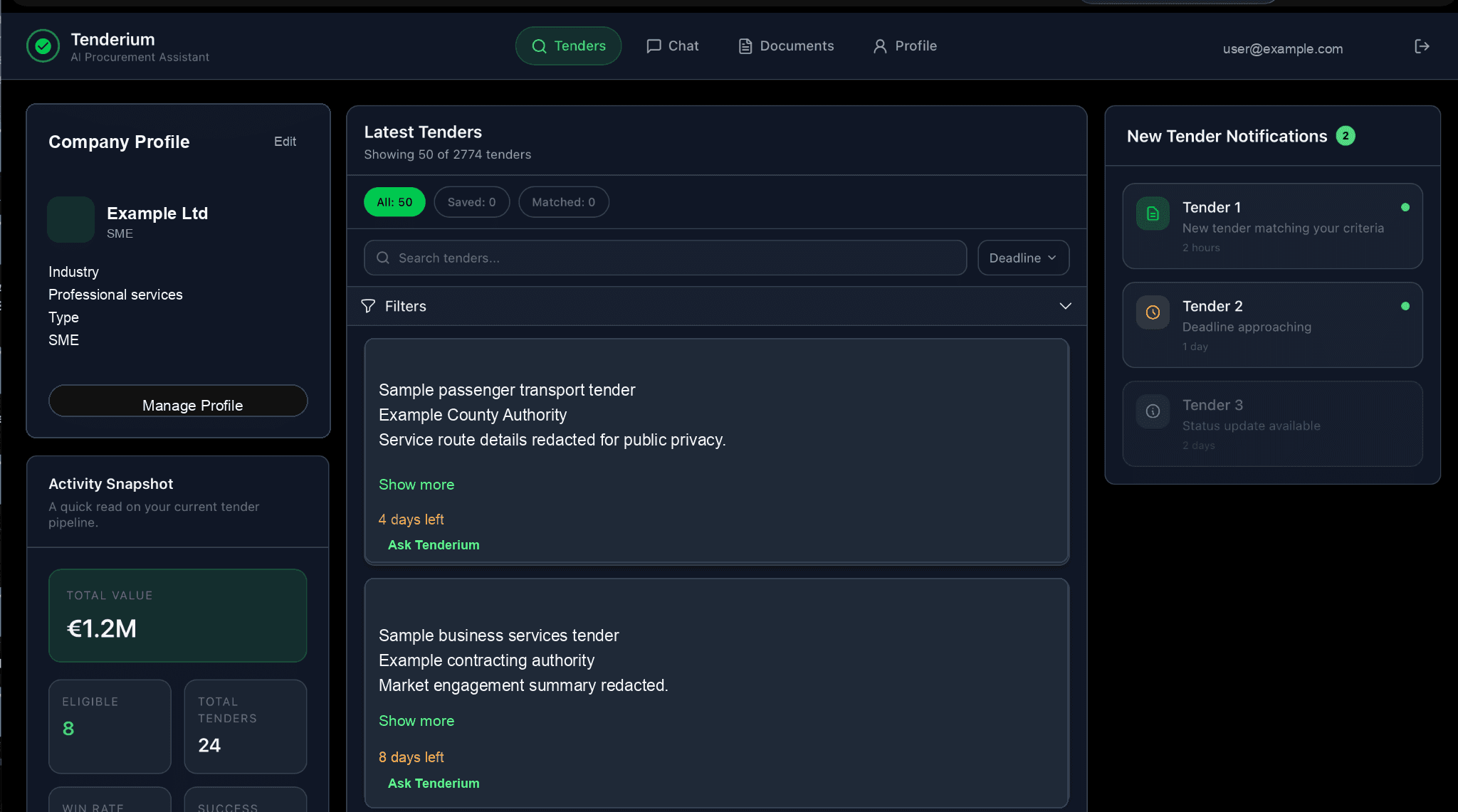
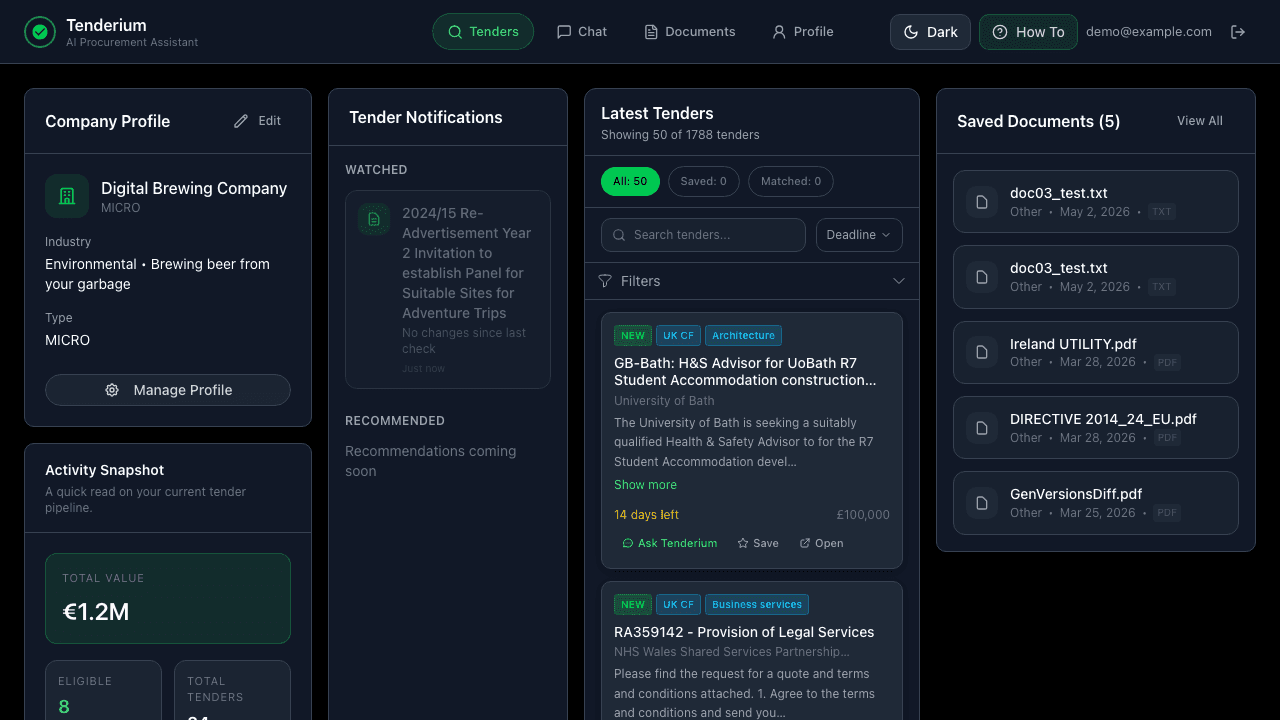
The Tenders page allows users to return to saved tenders and review activity. This area can develop into a market and performance dashboard, showing tender history, saved opportunities, activity statistics, and future recommendations.

Tender page with company profile, saved tenders, notifications, and activity overview
Screenshot 10 - tender page with company profile, saved tenders, and notifications.

Planned next improvements

Where the workflow is developing next

  • Prepared documents area: a third document column for documents that Tenderium helps the user complete, polish, generate, or mark as ready for review.
  • Readiness indicator: a practical progress bar showing whether a tender package appears 60%, 70%, or 80% prepared based on checklist coverage, uploaded documents, unresolved warnings, and user confirmations.
  • Smart filtering: personalised tender relevance based on company profile, sector, geography, contract values, previous tender history, and uploaded documents.
  • Green / yellow / red relevance signals: quick visual indicators showing whether a tender appears highly relevant, potentially relevant, or weakly aligned with the company profile.
  • Profile enrichment: future onboarding can use public company registers and procurement sources to pre-fill company data and improve recommendations.
  • Quality and source grounding: continued improvement of answer quality, source references, document-processing reliability, and anti-hallucination checks.

Important product boundary

Tenderium is a decision-support and preparation tool. It does not submit bids on behalf of users and should not be presented as a legal advisor. The platform helps structure information, highlight requirements, prepare documents, and reduce avoidable errors. Final review and submission remain under the user’s control through the official procurement channels.

Tenderium © 2026 • [email protected]

Disclaimer: Tenderium is a technology platform; no legal advice or bid submission.